

Perform event analysis
After you create and publish an event, you can analyze the event and see user behavior for this event.
You can also see the user flow across several events by using funnel analysis. For more information, see Overview.
Prerequisites
Make sure you have created and published the events you want to analyze. For more information, see Create an event and Publish an event.
Procedure
- Log on to the Mini Program platform.
- In the left navigation panel, choose Analytics > Custom Analysis.
- On the displayed Custom Analysis page, find the desired mini program.
- Click Events in the Action column. The Manage Event tab is displayed.
- On the Manage Event tab, click Event Analysis.
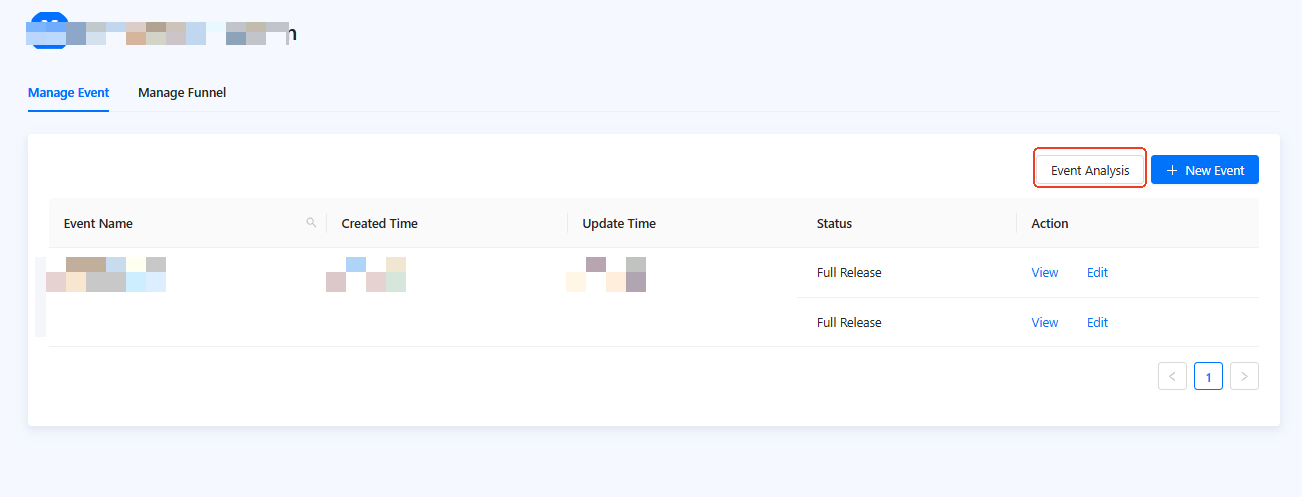
Figure 1. Event list
- On the Event Analysis page, configure the parameters.
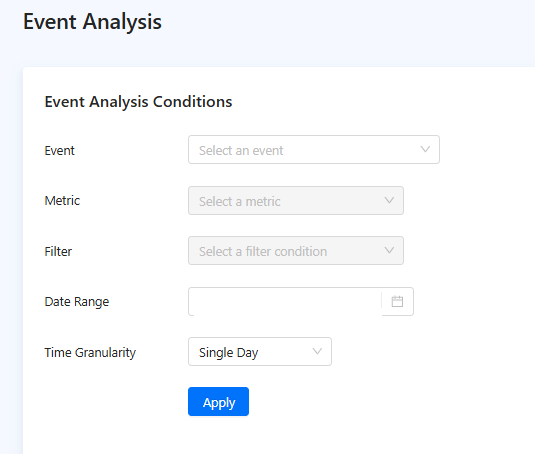
Figure 2. Event Analysis
- Event: The event to be analyzed. Select a published event to perform event analysis.
- Metric: Metrics are the fields that were previously defined for the event. These are the dimensions that you can analyze for the event. You can also select Page Views and Unique Visitors as metrics. After selecting one metric, you can click Add Metric to add more metrics.
- Filter: Data filter conditions. You can apply filter conditions to all the fields that you have previously defined for the event.
- Date Range: The period when the event was triggered.
- Time Granularity: Select a granularity for the event analysis, either daily or hourly.
- Click Apply.
Analyze data
After applying the event analysis conditions, you can click Graph or Data Details in the Event Analysis Result area to view the analysis results in the form of a graph or table.
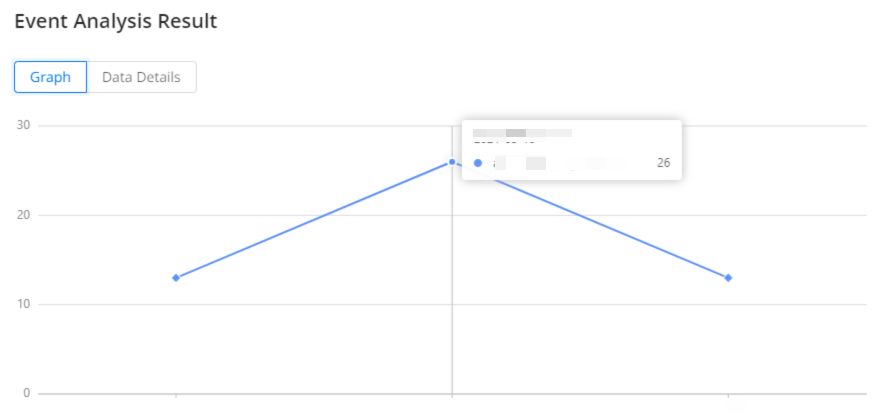
Figure 3. Graph data
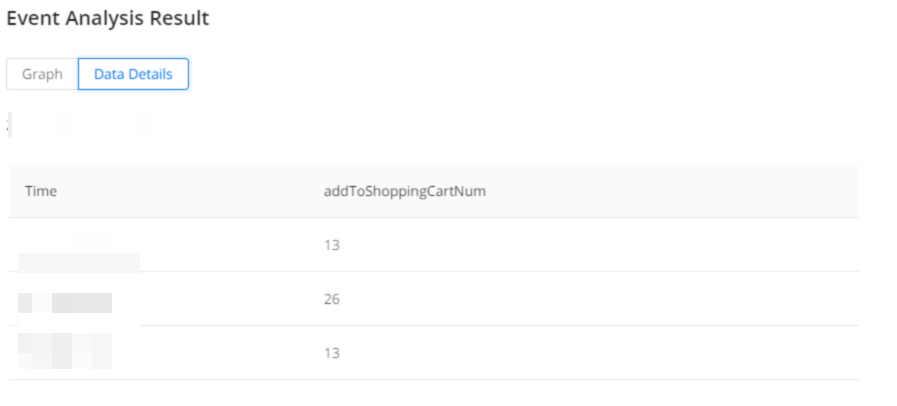
Figure 4. Data details
Based on the analysis data, you can extract the information that you need and optimize your mini program development and marketing strategies accordingly.