

Manage events
Events are the basis for event analysis on the Mini Program platform.
This document explains how to manage events throughout their lifecycles, from creation to deletion. This topic outlines the step-by-step processes and permissions required for each action.
Create an event
To create an event, take the following steps:
- Log on to the Mini Program platform.
- In the left navigation panel, choose Analytics > Custom Analysis.
- On the displayed Custom Analysis page, find the desired mini program.
- Click Events in the Action column. The Manage Event tab is displayed.
- On the Manage Event tab, click New Event.
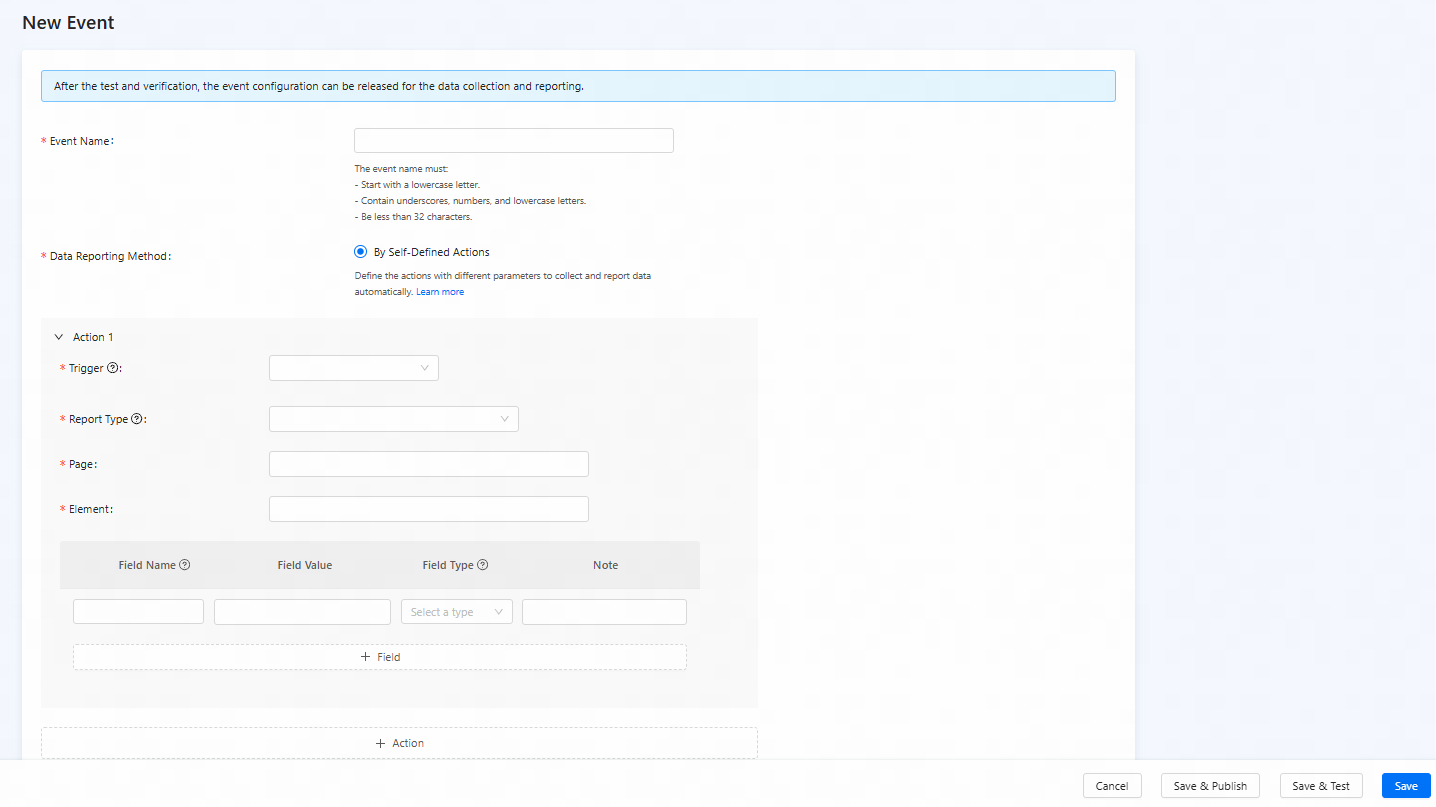
- On the New Event page, configure the parameters:
Parameter | Description | Example value |
Event Name | The name of the event. Follow a clear and consistent naming convention so analysts and developers can recognize it. | event_example1 |
Data Reporting Method | Specify the method in which data is collected and reported. By default, By Self-Defined Actions is selected, which specifies that data are reported when the custom actions occur and conditions match. | By Self-Defined Actions |
Action 1 | Configure the action that triggers the event. An event can contain one or multiple actions. Each action is an independent rule that can trigger the event.
After configuring an action, you can click Action to add more actions to the event. | N/A |
- After the event is configured, you can click one of the following buttons based on your business requirements:
- Save: Stores your configuration as a draft.
- Save & Test: Saves and opens test mode so you can validate that triggers fire as expected, selectors match, fields populate correctly, and Report Type behaves as intended. Use this before publishing.
- Save & Publish: Publishes the event. Data collection starts immediately for users who meet the action conditions. You can also publish the event after the event is created. For more information, see Publish an event.
View events
After you create an event, you can view the event and the event list in the Manage Event tab. To view events, take the following steps:
- Log on to the Mini Program platform.
- In the left navigation panel, choose Analytics > Custom Analysis.
- On the displayed Custom Analysis page, find the desired mini program.
- Click the name of the mini program or Events in the Action column.
- In the Manage Event tab, you can view the event list. The list displays information of the events, such as the name, creation time, update time, and status, and the actions you can perform on the events.

Figure 1. Manage Event
- You can click View in the Action of an event to view the details of the event.

Figure 2. View an event
Modify an event
After you create an event, you can modify the event and the event list in the Manage Event tab. To modify an event, take the following steps:
- Log on to the Mini Program platform.
- In the left navigation panel, choose Analytics > Custom Analysis.
- In the displayed Custom Analysis page, find the desired mini program.
- Click the name of the mini program or Events in the Action column.
- Click Edit to modify the event.
Note: You can also click View in the Action column and then click Modify in the upper-right corner to open the event modification page.
- On the Edit Event page, modify the event based on your business requirements and click Save.

Figure 3. Modify an event
Note: You can click Revert to Published Version in the Event Status field to compare the event information with the published version and restore the configurations to those of the published version.
Publish an event
You can use an event to perform event analysis only after it is published. You can publish an event when you create the event. This section describes how to publish an event after it is created.
To publish an event, take the following steps:
- Log on to the Mini Program platform.
- In the left navigation panel, choose Analytics > Custom Analysis.
- On the displayed Custom Analysis page, find the desired mini program.
- Click the name of the mini program or Events in the Action column.
- Click View in the Action column.
- On the displayed event information page, click Publish in the upper-right corner.

Figure 4. Publish an event
- In the confirmation dialog, click Publish.
Delete an event
To delete an event, take the following steps:
- Log on to the Mini Program platform.
- In the left navigation panel, choose Analytics > Custom Analysis.
- On the displayed Custom Analysis page, find the desired mini program.
- Click the name of the mini program or Events in the Action column.
- Click View in the Action column.
- On the displayed event information page, click Delete in the upper-right corner.

Figure 5. Delete an event
- In the confirmation dialog, click Delete.