

View mini program analytics data
The Mini Program Analysis page helps you compare performance across all mini programs under a target app. You can use it to see which mini programs attract the most visitors, how user engagement changes day over day, and how your portfolio is distributed by industry and source.
Getting started
To open the Mini Program Analysis page, take the following steps:
- Log in to the Mini Program platform.
- In the left navigation panel, choose Analytics > Mini Program Analysis.
- On the displayed Mini Program Analysis page, select a target app and a date to view that app's mini program analytics for the chosen day.
You can search for a mini program by name or ID in the search box to view analytics data of a specific mini program.
View mini program analytics data
The Mini Program Analysis page lists all mini programs in the selected app and shows identifiers, classification, source, and key performance metrics. Each column is explained below.
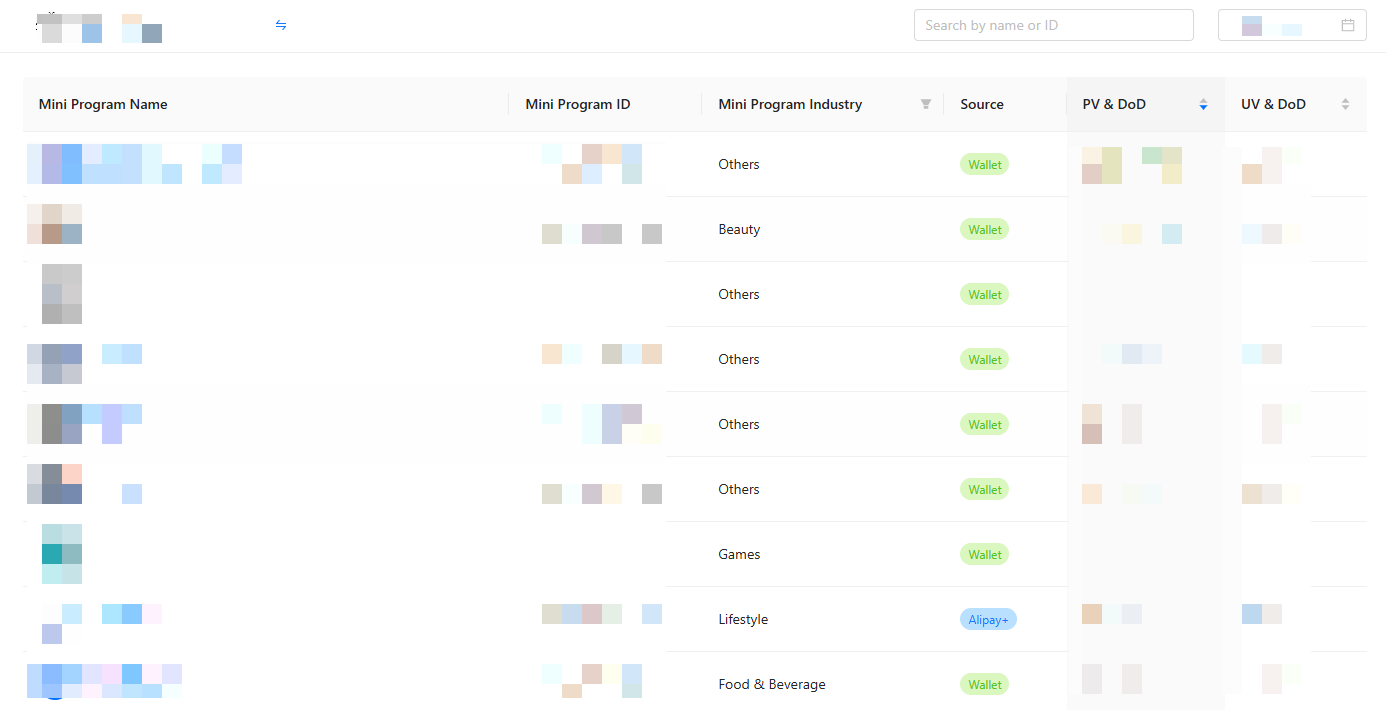
Figure 1. Mini program analysis
The following items describe the columns and how to efficiently view the statistics:
- Mini Program Name
- The name of the mini program.
- Use it to identify programs quickly. If names are similar, use the mini program ID.
- Mini Program ID
- The unique, stable identifier assigned to the mini program.
- You can search a mini program by its ID.
- Mini Program Industry
- The category of a mini program, such as Art & Design, Beauty, Business, etc.
- You can filter by one or more categories to narrow down the table.
- Source
- The ownership channel of the mini program: Wallet, Merchant, or Alipay+.
- PV & DoD
- PV (page views): The total number of page/screen loads generated by the mini program during the selected date.
- DoD (day-over-day change for PV): The change in PV compared with the prior calendar day.
- PV is shown as a number, with a DoD indicator showing an increase or decrease.
- PV reflects engagement volume. Compare PV with UV to gauge depth (PV per visitor) and use DoD to spot short-term momentum or drops (for example, after a release or campaign).
- UV & DoD
- UV (unique visitors): The number of distinct visitors who visited the mini program during the selected date. Each visitor is counted once, even if they visit multiple times.
- DoD (day-over-day change for UV): The change in UV compared with the prior calendar day.
- UV as a number, with a DoD indicator showing an increase or decrease.
- UV reflects true reach. Rising UV indicates broader audience exposure; flat or falling UV suggests acquisition or discovery challenges. Compare UV & DoD with PV & DoD to distinguish reach changes from engagement changes.
Note: You can click the sorting icons in the PV & DoD and UV & DoD columns to sort mini programs by PV or UV values in ascending or descending order. This way, you can quickly spot the mini programs with the largest or lowest reach or engagement.
Report time zone
Traffic reports for a mini program are generated separately per target app, with each report using the respective app's time zone. For more information, see Time zone: Overview. To confirm the specific time zone applied to this report, hover over its tab to view the tooltip.